

Iris and Sodium Minecraft: How They Work Together

Learn how Iris and Sodium work together in Minecraft, including shader support, performance optimization, and installation requirements,
Iris and Sodium Minecraft: How They Work Together
Sodium and Iris are two popular Minecraft mods commonly used together to improve shader support and game performance. Iris adds support for modern Minecraft shaders, while Sodium focuses on optimizing the game’s rendering system.
Using Iris with Sodium allows players to enjoy shader packs while maintaining smoother gameplay and better performance than many traditional shader setups. This combination is especially useful for players who want better graphics without giving up too much FPS.
In this guide, we’ll explain what Iris and Sodium do, how they work together, whether Sodium is required for Iris, how to set them up, and how to troubleshoot common problems.
What Is Iris Minecraft?
Iris is a Minecraft shader mod designed to provide support for shader packs while maintaining compatibility with modern Minecraft modding environments.
Shaders can dramatically change the appearance of Minecraft by adding effects such as improved lighting, shadows, reflections, ambient effects, water improvements, and atmospheric visuals.
Instead of changing Minecraft’s basic gameplay, Iris primarily works as the shader-loading component that allows compatible shader packs to run.
What Does Iris Do?
Iris provides the infrastructure needed to load compatible shader packs in Minecraft. Once installed, players can select and manage shader packs through the game’s graphics and shader settings.
Depending on the shader pack being used, Iris can add effects such as:
- Dynamic lighting
- Improved shadows
- Realistic water
- Reflections
- Volumetric lighting
- Better clouds
- Atmospheric effects
- Enhanced colors and lighting
- Custom visual effects
The actual appearance and performance depend on the shader pack, Minecraft version, hardware, and graphics settings.
What Is Sodium Minecraft?
Sodium is a Minecraft optimization mod focused primarily on improving the game’s rendering performance.
Minecraft can place a significant workload on the graphics system, particularly when rendering large worlds, high view distances, detailed environments, and complex visual effects. Sodium changes parts of the rendering process to make the game more efficient.
This can result in improved frame rates, reduced rendering overhead, and smoother gameplay on compatible systems.
What Does Sodium Do?
Sodium focuses on rendering optimization rather than adding shader effects.
Its purpose includes improving how Minecraft handles graphical rendering so that the game can make better use of available hardware resources.
The benefits you experience can vary depending on your CPU, GPU, RAM, Minecraft settings, resolution, render distance, and other installed mods.
How Do Iris and Sodium Work Together?
Iris and Sodium complement each other because they perform different jobs.
Iris handles shader support, while Sodium provides rendering optimization.
When used together, the setup can be thought of as:
Minecraft → Sodium → Iris → Shader Pack
Minecraft provides the game environment. Sodium optimizes rendering, Iris provides shader support, and the selected shader pack adds the visual effects.
This makes Iris + Sodium a popular combination for players who want enhanced graphics without relying on older shader configurations.
Do You Need Sodium for Iris?
Sodium is closely associated with modern Iris installations and is commonly included in Iris-based setups because of its rendering optimizations.
However, whether a particular installation requires Sodium can depend on the current Iris installation method, Minecraft version, and supported configuration.
For the most reliable setup, players should use versions of Iris, Sodium, Minecraft, and the relevant mod loader that are compatible with each other.
If you are installing Iris for the first time, follow the dedicated How To Install Iris Minecraft guide for the complete setup process.
Benefits of Using Iris and Sodium Together
Combining Iris and Sodium provides several advantages for Minecraft players.
Shader Support
Iris allows compatible shader packs to run in Minecraft, giving players access to significantly improved lighting and visual effects.
You can switch between different shader packs depending on the visual style and performance level you want.
Rendering Optimization
Sodium is designed to optimize Minecraft’s rendering system. This can help reduce rendering overhead and improve frame rates compared with an unoptimized setup.
However, performance gains are hardware-dependent and are not guaranteed to be the same for every player.
Better Graphics and Performance Balance
One of the main reasons players use Iris with Sodium is the ability to combine shader-based visuals with rendering optimization.
A powerful computer may be able to run demanding shaders at higher settings, while a lower-end system may need lightweight shader packs and reduced graphics settings.
Modern Modding Compatibility
Iris and Sodium are commonly used as part of modern Minecraft Java Edition modded setups.
Using compatible versions of the mods is important because Minecraft updates can change compatibility requirements.
What Do You Need for Iris and Sodium?
Before setting up Iris and Sodium, you should have the appropriate version of Minecraft Java Edition and compatible versions of the required components.
A typical setup may include:
- Minecraft Java Edition
- A compatible mod loader
- Iris
- Sodium
- Compatible shader packs
- Java when required by your installation method
The exact versions should be matched rather than choosing each component independently.
For example, a shader pack may support a particular Minecraft version while a specific Iris or Sodium release may support a different version. Checking compatibility before installation can prevent crashes and other problems.
How To Install Iris and Sodium Minecraft
The installation process depends on the Minecraft version and installation method you choose.
A typical setup follows this general process.
Step 1: Prepare Minecraft Java Edition
Make sure Minecraft Java Edition is installed and that you can launch the version you want to use.
It is useful to launch the game normally before adding mods so you know the base installation is working correctly.
Step 2: Install a Compatible Mod Loader
Iris and Sodium are commonly used with modern Minecraft modding setups.
Install a compatible loader for the Minecraft version you intend to play and make sure it launches correctly before adding additional components.
Step 3: Install Iris and Sodium
Install compatible versions of Iris and Sodium according to the requirements of your selected Minecraft version.
Avoid mixing random versions of the mods. A mismatch between Minecraft, the mod loader, Iris, and Sodium can cause startup errors or crashes.
Step 4: Start Minecraft
Launch Minecraft using the appropriate modded profile.
If everything is compatible, Iris and Sodium should load with the game.
You can then check the video settings and shader-related options to confirm that the setup is working.
Step 5: Add a Shader Pack
After Iris is working, download a shader pack that supports your Minecraft version and Iris.
Place the shader pack in the appropriate shaderpacks location and select it through the game’s shader settings.
For a complete installation walkthrough, use the dedicated How To Install Iris Minecraft guide.
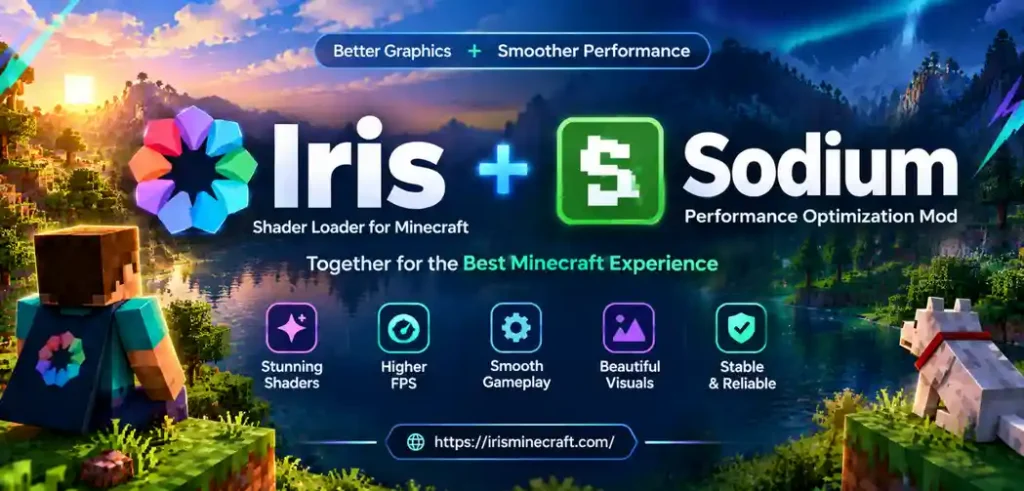
Iris and Sodium Shader Packs
Iris itself does not provide a complete visual style on its own. The shader pack determines many of the lighting, shadow, water, and atmospheric effects you see in the game.
Popular shader packs used with Iris can include:
- Complementary Shaders
- BSL Shaders
- SEUS
- Sildur’s Shaders
- AstraLex
Compatibility and performance can vary between shader packs and Minecraft versions.
A shader that runs smoothly on one computer may perform poorly on another because shader effects can place significant demands on the GPU.
Iris and Sodium Performance Optimization
Getting good performance is not only about installing Sodium. Shader settings can have a major effect on FPS.
If your game feels slow after enabling shaders, start by reducing the most demanding settings.
Reduce Render Distance
Render distance determines how far Minecraft renders the world.
A very high render distance can increase the amount of work your computer needs to perform.
Reducing it can help improve performance, particularly when exploring large worlds.
Lower Shader Quality
Many shader packs provide their own quality presets.
If your FPS is too low, try moving from a high or ultra preset to a medium or low preset.
Reduce Shadow Quality
Shadows can be particularly demanding when using advanced shader packs.
Lowering shadow resolution or related shadow settings can provide a noticeable performance improvement.
Reduce Volumetric Effects
Effects such as volumetric clouds, fog, lighting, and other atmospheric features can increase GPU usage.
Disabling or reducing these effects can help when running demanding shaders.
Adjust Simulation and Render Settings
Minecraft’s simulation distance and render distance both affect performance.
Reducing unnecessary distance settings can help maintain a smoother frame rate while still keeping the game visually appealing.
Can Iris and Sodium Run on Low-End PCs?
Iris and Sodium can be used on a wide range of systems, but running shaders is more demanding than playing Minecraft without shaders.
A lower-end computer may need:
- A lightweight shader pack
- Lower shader quality
- Reduced render distance
- Lower shadow quality
- Reduced volumetric effects
- Lower resolution when necessary
- Optimized Minecraft settings
Sodium can help reduce rendering overhead, but it cannot make demanding shaders completely free from hardware requirements.
For the best results, start with a lightweight shader and gradually increase visual settings until you find a balance between graphics and performance.
Common Iris and Sodium Problems
Although Iris and Sodium can work well together, version mismatches and incompatible configurations can cause problems.
Minecraft Crashes After Installing Iris and Sodium
A crash can occur when one or more installed components are incompatible.
Check:
- Minecraft version
- Mod loader version
- Iris version
- Sodium version
- Other installed mods
- Shader pack compatibility
If you recently added another mod, temporarily removing it can also help identify whether it is causing a conflict.
Shaders Are Not Showing
If shader packs do not appear, check that the shader pack is compatible with your Iris version and Minecraft version.
Also make sure the shader pack has been placed in the correct shaderpacks folder and that it has not been incorrectly extracted or packaged.
Low FPS With Iris and Sodium
If FPS drops after enabling a shader, the shader itself may be demanding.
Try:
- Lowering shader quality.
- Reducing render distance.
- Reducing shadow quality.
- Disabling demanding volumetric effects.
- Testing a lighter shader pack.
- Checking whether other mods are affecting performance.
Remember that Sodium optimizes rendering, but it cannot remove the performance cost of complex shader effects.
Iris and Sodium Versions Do Not Match
Minecraft mod compatibility is version-dependent.
If you see an error after updating Minecraft or one of the mods, check whether the installed Iris and Sodium releases support your Minecraft version.
Updating every component blindly is not always the best approach. Instead, make sure the versions form a compatible combination.
Iris and Sodium vs OptiFine
Sodium + Iris and OptiFine take different approaches to Minecraft graphics and optimization.
Iris is primarily associated with modern shader support, while Sodium focuses on rendering optimization.
OptiFine combines many graphical and optimization features into a single established mod.
The choice between these setups depends on factors such as:
- Minecraft version
- Mod compatibility
- Shader compatibility
- Performance requirements
- Existing mods
- Features you want to use
For a detailed comparison, see Iris Minecraft vs OptiFine.
Iris and Sodium for Minecraft Mods
One of the advantages of a modern modded Minecraft setup is the ability to combine different mods.
However, adding more mods also increases the possibility of compatibility problems.
When using Iris and Sodium with other mods, check whether those mods support your Minecraft version and rendering configuration.
If Minecraft starts crashing after adding another mod, test the setup without that mod to determine whether it is causing the conflict.
Should You Use Iris and Sodium Together?
Iris and Sodium serve different purposes, which is why they are commonly used together.
Iris provides shader support, while Sodium focuses on optimizing Minecraft’s rendering.
For players who want to use shader packs while maintaining a performance-focused Minecraft setup, combining the two provides a straightforward way to approach that goal.
The actual performance you get will depend on your hardware, shader pack, Minecraft version, graphics settings, and other installed mods.
Frequently Asked Questions
What Is Iris and Sodium in Minecraft?
Iris is a Minecraft shader mod that provides support for compatible shader packs. Sodium is a rendering optimization mod. They are commonly used together to combine shader support with rendering optimization.
Is Sodium Required for Iris?
The exact requirement depends on the Iris installation method and Minecraft version. Sodium is commonly used with Iris and is included in many modern Iris setups because of its rendering optimizations.
Does Iris Increase FPS?
Iris itself is primarily focused on shader support. Your FPS can change depending on the shader pack and settings you use. Sodium can improve rendering efficiency, but actual performance varies according to your hardware and configuration.
Can Iris Run Minecraft Shaders?
Yes. Iris is designed to provide support for compatible Minecraft shader packs.
Does Sodium Work With Iris?
Yes. Iris and Sodium are commonly used together in Minecraft Java Edition setups, provided that the installed versions are compatible.
Can I Use Iris Without Shaders?
Yes. Iris is primarily useful for shader support, but you do not have to enable a shader pack every time you play.
Can I Use Other Mods With Iris and Sodium?
Yes, but compatibility depends on the specific mods, Minecraft version, and rendering setup. If you experience crashes or visual problems, check each mod’s compatibility and test the configuration individually.
Is Iris Better Than OptiFine?
Iris and OptiFine use different approaches and provide different features. Iris is focused on modern shader support and is commonly paired with Sodium for rendering optimization, while OptiFine provides a broader collection of graphical and optimization features in one mod.
Which setup works for you depends on your Minecraft version, mods, shaders, and preferred features.
Does Sodium Work With Shader Packs?
Sodium is an optimization mod rather than a shader loader. Iris provides the shader-support layer that allows compatible shader packs to be used alongside a Sodium-based rendering setup.
Can Iris and Sodium Run on Low-End PCs?
They can run on a range of systems, but demanding shader packs may require stronger hardware. Lower shader quality, reduced render distance, and lightweight shader packs can help improve performance on less powerful computers.
Final Thoughts
Iris and Sodium are commonly combined because they solve two different parts of the Minecraft graphics experience. Iris provides support for compatible shader packs, while Sodium focuses on optimizing rendering performance.
When the versions are compatible, the combination can provide enhanced Minecraft visuals while keeping the game optimized for modern rendering.
For the best results, match Iris, Sodium, Minecraft, and your shader pack carefully, then adjust shader and graphics settings according to your hardware.
If you are new to Iris, start with the How To Install Iris Minecraft guide and then explore compatible shader packs and performance settings.